Merging Branches
Merging applies the changes from one branch (the source) into another branch (the target). Before the merge is applied, Tolgee analyses the differences and shows you a preview so you can review everything — and resolve any conflicts — before committing.
Initiating a Merge
Go to Branching in the project sidebar. Click the branch icon button next to the branch you want to merge. Tolgee immediately opens the merge preview page.
The merge always goes into the branch the source branch was created from (the origin branch). In many workflows this is the default branch (main), but it can be any branch.
Understanding the Merge Preview
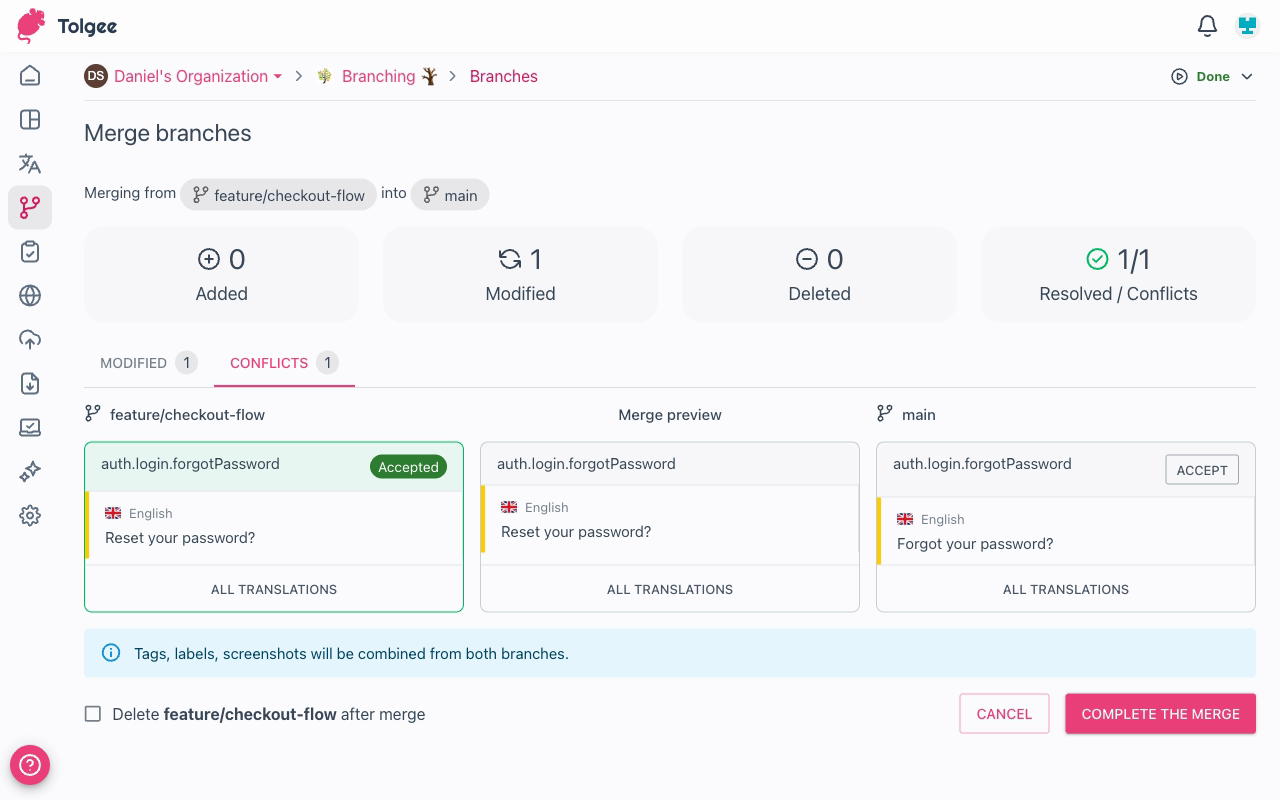
The merge preview shows a summary of all differences between the source and target branch, grouped into four categories:
| Category | Meaning |
|---|---|
| Added | Keys that exist in the source branch but not in the target — they will be created |
| Modified | Keys that were changed in the source branch — the target version will be updated |
| Deleted | Keys that were removed in the source branch — they will be deleted from the target |
| Conflicts | Keys that were changed in both branches — you must choose which version to keep |
The tabs below the summary let you browse each category. Non-conflicting changes (Added, Modified, Deleted) are applied automatically.
Reviewing Modified Changes
The Modified tab shows a three-column view: source branch on the left, merge preview in the centre, and the target branch on the right.
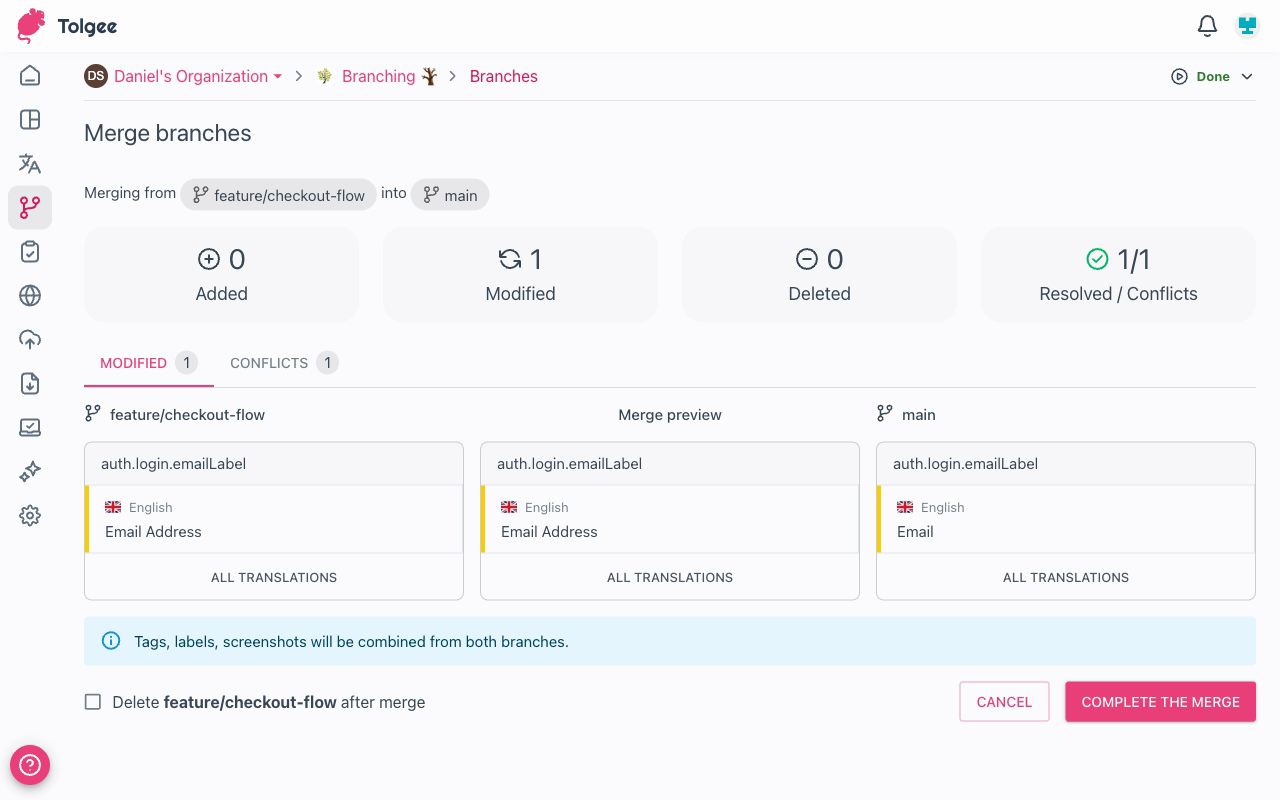
These changes require no action — they will be applied automatically when you complete the merge.
Resolving Conflicts
A conflict occurs when the same key was changed in both branches since the branch was created. You must choose which version to keep before the merge can be completed.
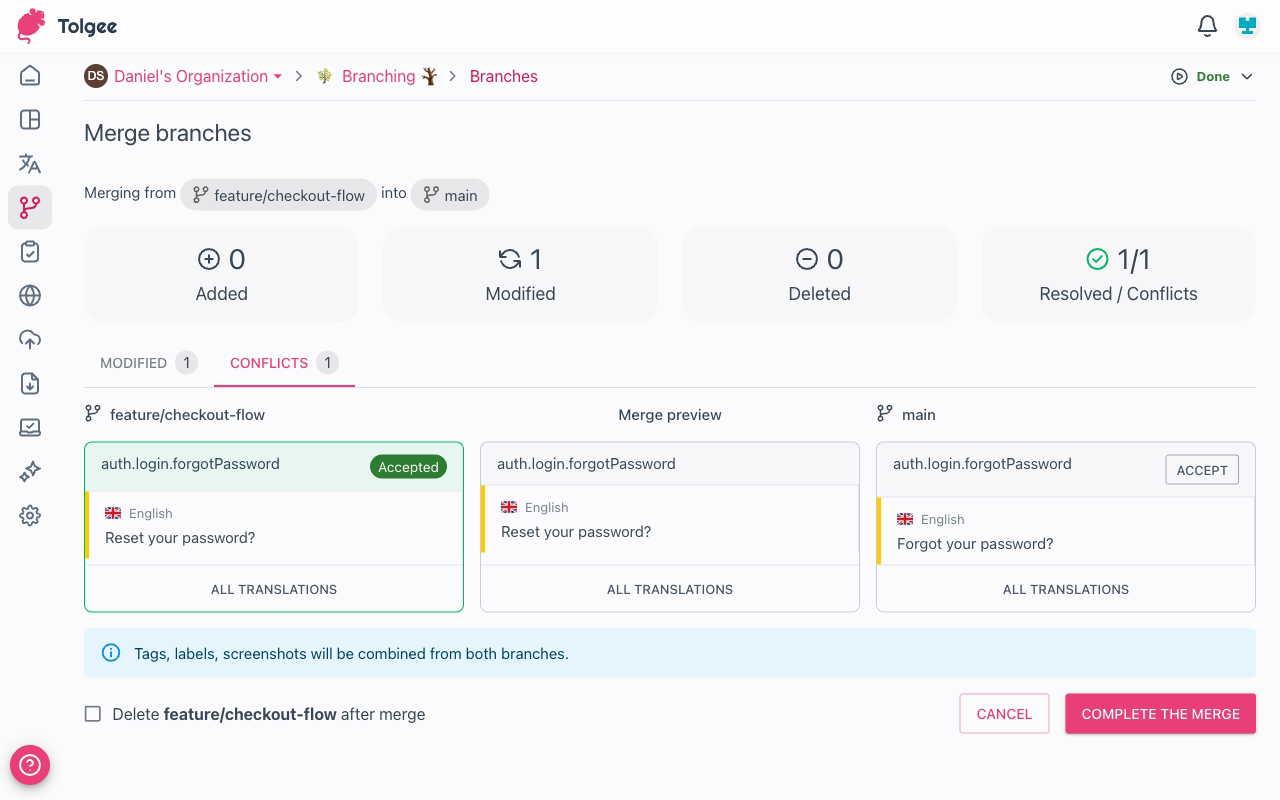
For each conflict, you see:
- The source branch version on the left
- The merge preview (empty until resolved) in the centre
- The target branch version on the right
Click Accept on either side to choose that version. The merge preview in the centre updates to reflect your choice and the conflict is marked as resolved.
You can expand All Translations to see all languages for a key before deciding.
Tags, labels, and screenshots are always combined from both branches — they are never lost in a merge.
Completing the Merge
Once all conflicts are resolved, the Complete the merge button becomes active and the conflicts counter shows all resolved.
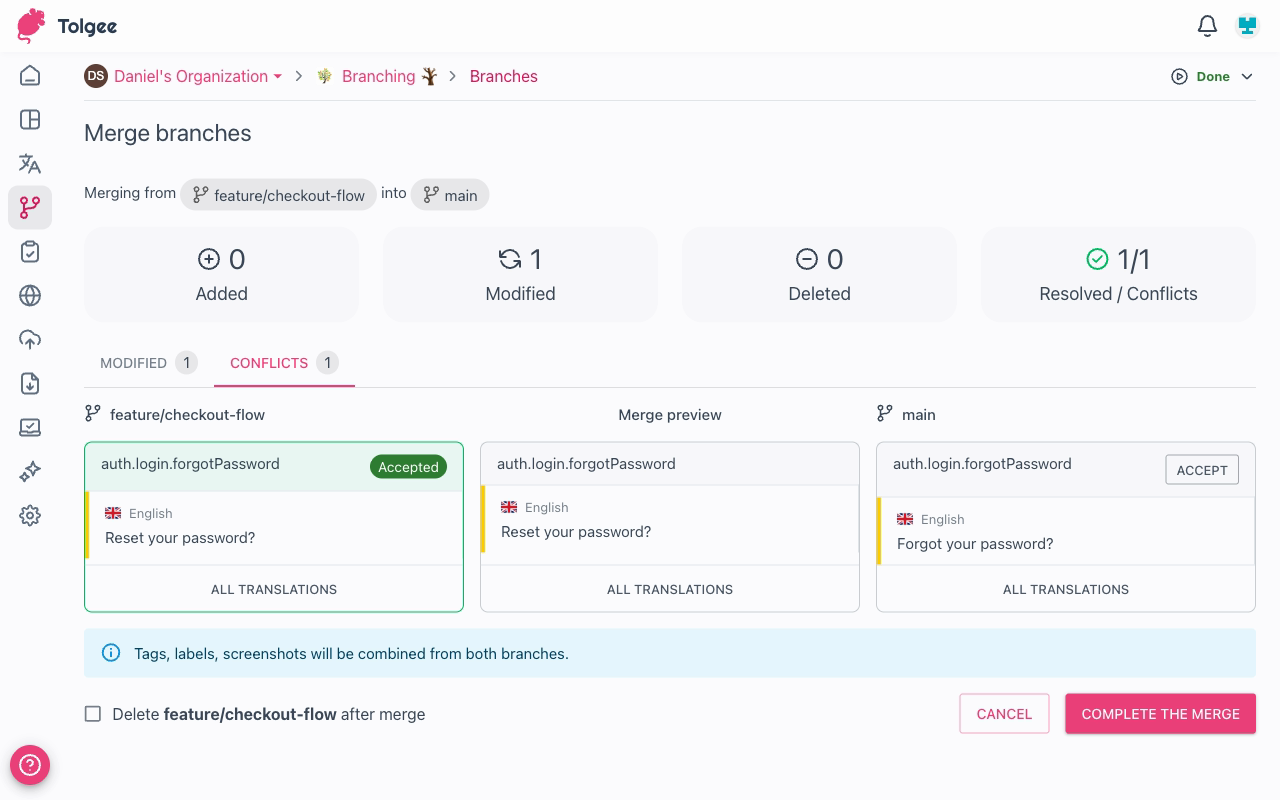
Optionally check Delete [branch name] after merge to automatically remove the source branch once the merge is applied.
Click Complete the merge to apply all changes to the target branch.
Merge Invalidation
If the source or target branch is modified while the merge preview is open (for example, someone edits a translation in the meantime), the merge preview becomes stale. Tolgee will notify you and offer a Refresh option to re-analyse the differences with the latest state of both branches.
Any conflict resolutions you already made are preserved where possible after a refresh.